
Updated
WebDAV Video Playback on Android: Setup and Troubleshooting
Add a WebDAV source when your videos are available through a WebDAV server. Stream can browse the endpoint, add selected folders to the media library, and play remote files on Android.
The result: one movie and TV library with posters and saved playback progress, using the files on your existing server. You do not need a separate Stream server.
For a free playback check, use an MP4 or M4V video at 1080p or lower. Other supported containers, including MKV, have a 5-minute preview. Review Free vs Stream Pro before choosing a test file.
Before You Begin
- Get the full WebDAV endpoint from the server provider.
- Prefer HTTPS when the endpoint is available over the internet.
- Have the WebDAV username and password ready if authentication is required.
- Confirm the endpoint is reachable from the Android device.
Add the WebDAV Source
On a fresh install, choose Folders, then WebDAV in the first-source setup. If you have already added a source, follow the File Source steps below.
- Open File Source in Stream.
- Choose Add File Source, then select WebDAV under Network Share.
- Enter a source name.
- Enter the full endpoint, including its scheme and path, such as
https://example.com/dav/. - Enter the username and password when required.
- Choose Add. Stream tests the endpoint before saving it.
See the Connection Form
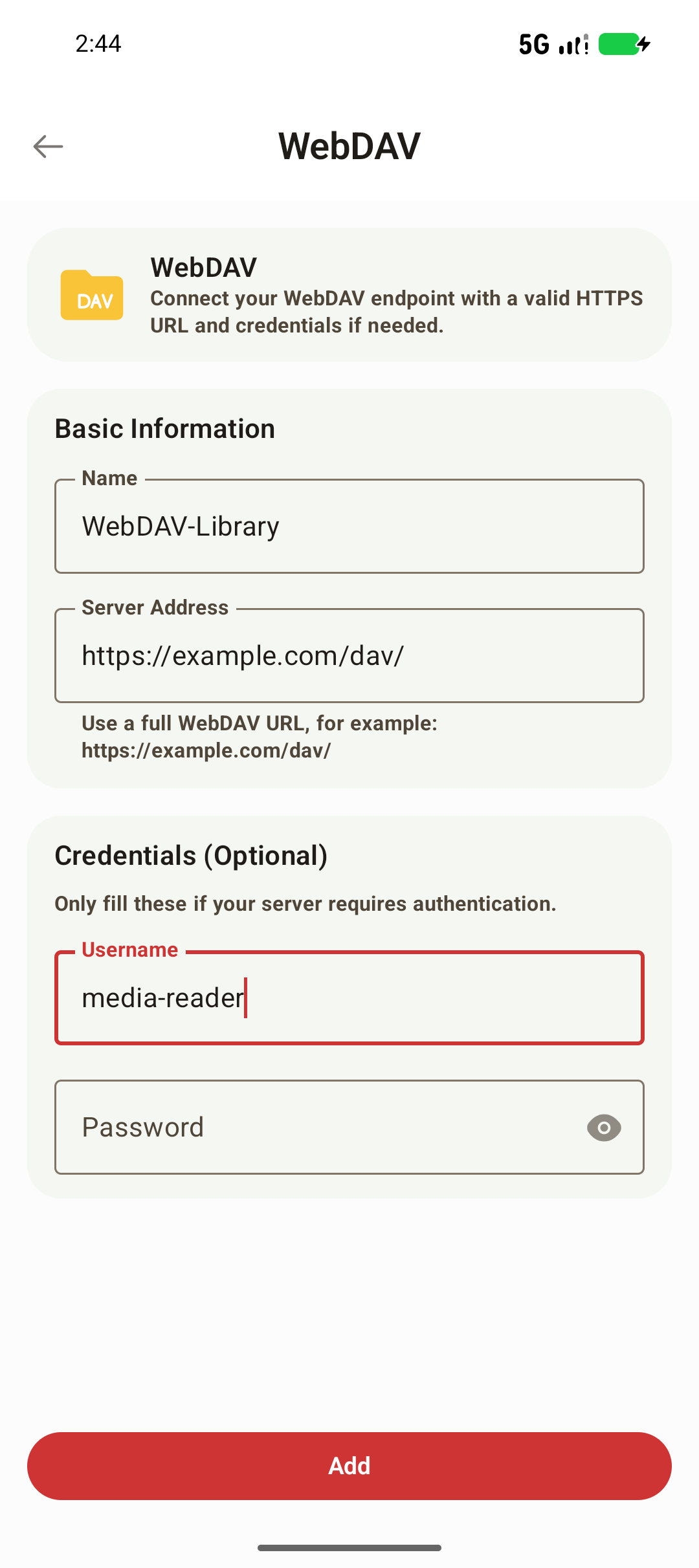
| Field | Example | What belongs here |
|---|---|---|
| Name | WebDAV-Library | A label you will recognize in Stream |
| Server Address | https://example.com/dav/ | The full WebDAV endpoint, including any port and path |
| Username | media-reader | Your WebDAV account, if required |
| Password | Your WebDAV password | The account password or a provider-specific app password |
Build the Library
- Open the saved WebDAV source and confirm that it lists your folders.
- Select a small folder containing movies or TV shows and start a library scan.
- Return to the library and open a matched title to see its artwork and details.
If matching is unreliable, review the video file naming rules or correct a wrong match.
Press Play, then check sound, subtitles, and seeking on your own phone. Leave playback and open the title again to check its saved position. Continuing a non-MP4 preview or playing above the free resolution limit requires Pro; codec and HDR compatibility still depend on the device.
Supported Scope
Stream browses and plays files exposed by the configured WebDAV endpoint. Server behavior, redirects, available bandwidth, and permissions can affect browsing and playback.
Password-protected WebDAV playback is supported inside Stream, but casting password-protected WebDAV media is not currently supported.
This guide is for Android phones. Stream's Android TV app is coming soon and is not yet on Google Play. If you are choosing a player, start with Infuse alternatives on Android.
Common Problems
- The endpoint will not connect: Include the complete
https://orhttp://URL and any required WebDAV path. - Authentication fails: Confirm the WebDAV-specific username or app password with the provider.
- Folders appear empty: Check that the account has permission to list and read the folder.
- Remote playback buffers: Test the server bandwidth and the Android device's network connection. See Why Does My Video Buffer or Stutter?.
Use the WebDAV Endpoint, Not the Web Login Page
A server's browser login page is not necessarily its WebDAV endpoint. Obtain the exact address from the server's WebDAV settings or provider documentation, including any port and path. For example, https://example.com/dav/ and https://example.com/ may lead to different services.
Being able to sign in through a browser does not confirm that a WebDAV client can list that endpoint. A provider may require an app password or a separate WebDAV account.
What Server Errors Mean
| Response | What to check |
|---|---|
| 401 Unauthorized | WebDAV username, password or provider-specific app password |
| 403 Forbidden | Permission to list and read the selected directory, plus any provider access policy |
| 404 Not Found | Full WebDAV path and the folder's current location |
| Timeout or connection failure | Hostname, port, server availability and network routing |
| Certificate failure | HTTPS hostname, certificate validity and the server's certificate chain |
Fix access before repeatedly scanning. If the account can list the directory but cannot read a video, grant read permission for that file as well.
The Source Connects but No Videos Appear
Open the source and check whether Stream can list its folders. Select a media folder for the library, then scan it. Test with one known video before selecting a large collection. If the server returns a login page instead of a WebDAV directory response, verify the endpoint with the provider.
If files are visible but titles match incorrectly, follow the file naming guide or correct the match. If a video starts and later buffers, check both the server's upload bandwidth and the Android device's connection. Changing metadata or rescanning will not improve a slow network stream.
Privacy and Credentials
Credentials are sent to the WebDAV server you configure so Stream can access protected files. Use HTTPS for remote servers to protect credentials in transit. Passwords are excluded from Stream's Google Drive sync data.